
Generate AI notes
Turn your transcript and rough notes into a summary you can act on.
macOS · Windows betaPrepare your notes model
Open Settings → Notes model and configure a model before generating notes. Choose a local model or an external provider you have enabled. Local models need a completed download; external providers need a working account, credentials, and network connection.
See Choose a notes model for the privacy and setup differences.
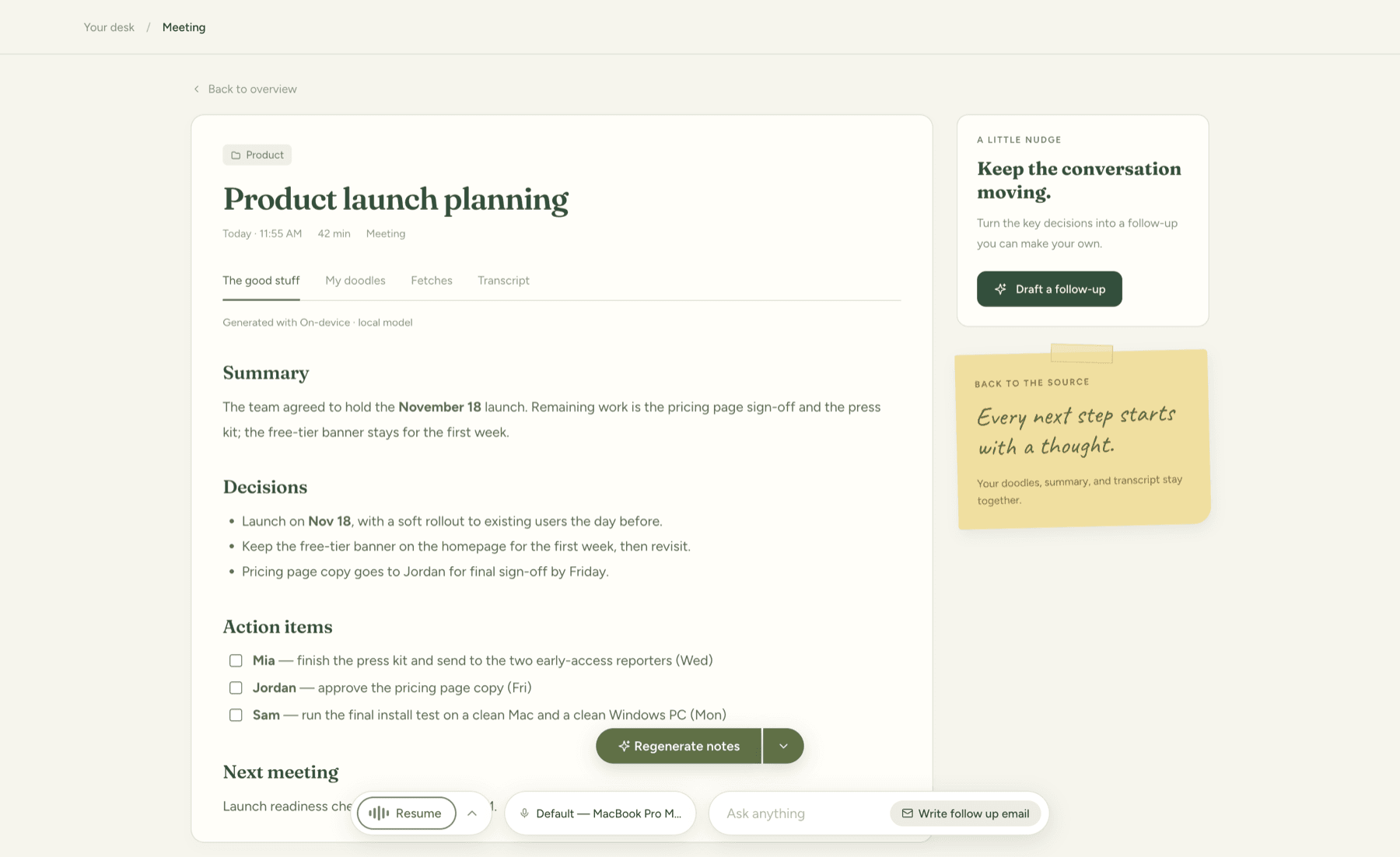
Generate and review
- Open a meeting with a transcript or rough notes.
- Add context you want the summary to preserve, such as correct names or a decision.
- Choose Generate notes and select a template if offered.
- Wait for generation and saving to finish before switching meetings.
- Review the result against the transcript and your original notes.
Check owners, dates, numbers, and action items. AI can omit context or infer something that was never agreed. Edit the notes before sending them to anyone.
If generation does not finish
Read the displayed error, then check the selected model in Settings. Finish any pending download. For external AI, check the provider connection and account limits. Retry from the same meeting when ready.
If the app says the meeting changed during generation, reopen the intended meeting and generate again. Your existing notes should be reviewed before replacing them; a failed request is not evidence that a new summary was saved.