
Set up Bark dictation
Speak into the apps you already use, with speech recognition on your Mac.
macOS · Apple SiliconOn this page
Before you start
Bark is DoodleNote’s dictation feature for supported Apple Silicon Macs. It is off until you enable it in Settings → Bark. It is not available in the Windows beta.
Bark recognizes your speech on the Mac and does not retain dictation audio. Review any cleanup or transformation settings separately if you choose to use an external AI provider.
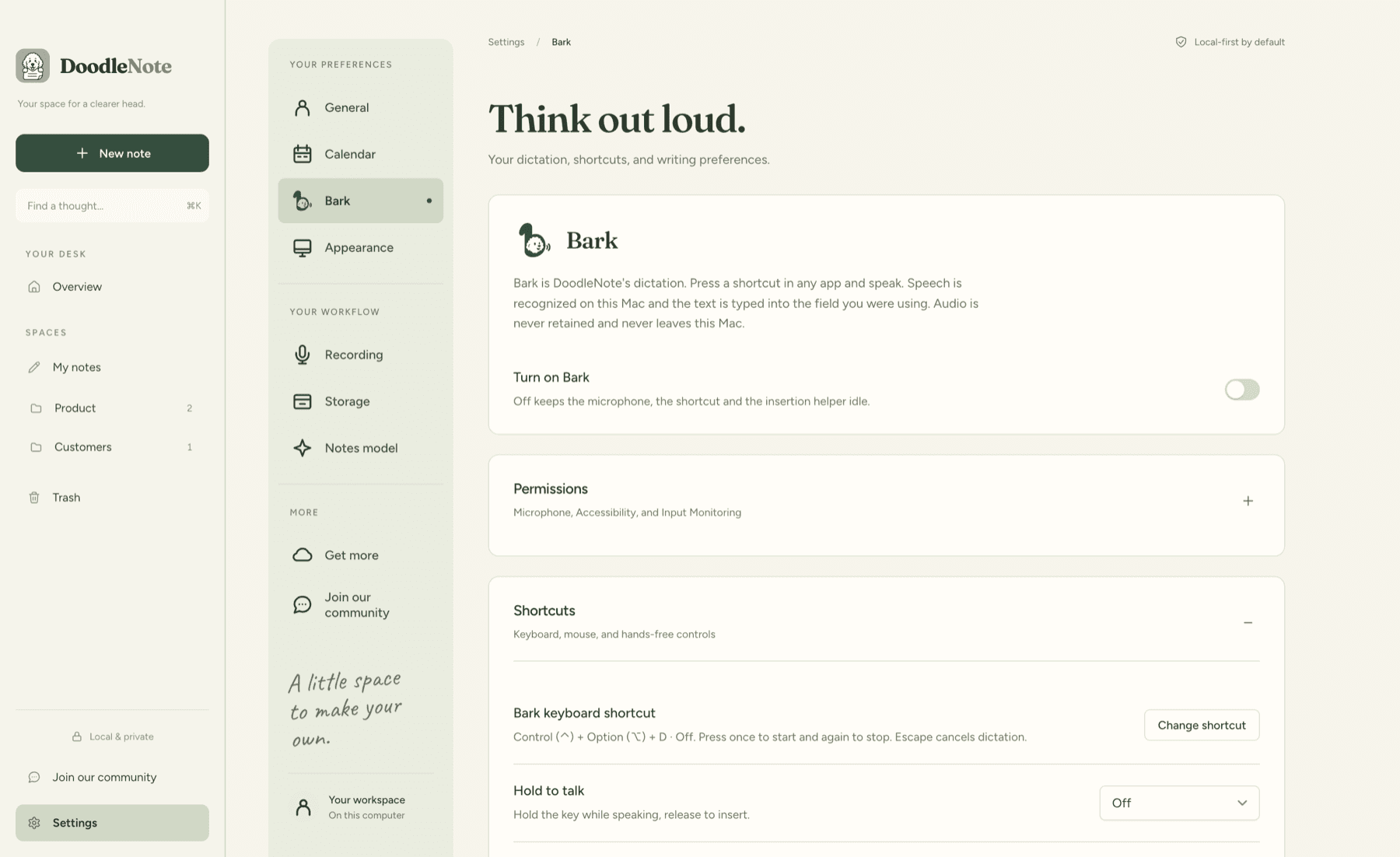
Enable Bark
- Open Settings → Bark and turn Bark on.
- Complete the permission steps shown there. Microphone access captures speech; Accessibility allows text insertion; some shortcuts also need Input Monitoring.
- Finish any required model setup.
- Choose a shortcut or a hold-to-talk key.
- Open a simple text field in another app and place your cursor in it.
- Use the shortcut, speak a short sentence, and stop dictation.
Your words should appear in the field you selected. Review them before sending a message or submitting a form.
Make it yours
Bark includes cleanup options, per-app style preferences, and a personal dictionary. Start with a short dictation, then adjust one setting at a time so you can hear how it changes your result.
If no text appears, follow Fix Bark problems. Keep the intended text field focused while dictating.